Word 2003 Privacy Features
Companies and individuals are increasingly concerned about the security of their documents and computer systems. Word’s security features include:
- Password-protected encryption of various strengths
- Privacy features that allow you to strip personal information and interim comments out of a document before you forward it to others
- New Information Rights Management features that allow you to control who can read and edit your document, and even give documents “expiration dates” after which they cannot be read at all
- Support for digital signatures that confirm the identity of individuals who have created a document
- Limited macro virus protection, largely intended to supplement third-party antivirus software, not replace it
- Improved document protection features that limit the changes that can be made to a document
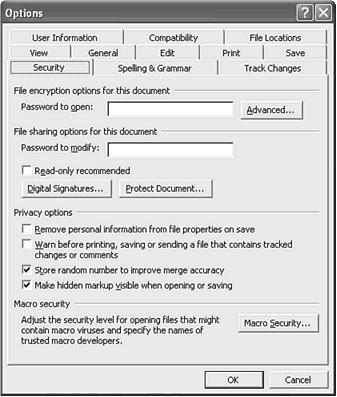
Word 2003 brings together its security features in the Security tab of the Options dialog box. To display it, choose Tools, Options, Security
Removing Personal Information from Word Documents
Unknown to many Word users, Word stores a wide variety of personal information about you in the files you create—information that can be used to trace a document to you (and/or your colleagues). For example, the first time you ran Word, you were asked for your name and initials; if you provided them, they have been stored in the Author field of the Summary tab of the Properties dialog box in all your documents. By default, Word also stores this additional personal information:
- The following Properties fields: Manager, Company, Last Saved By
- The names of individuals who have reviewed a document using Word’s Tracked Changes and Comments features
- The names that appear on a routing slip when you forward a document to others using File, Send To, Routing Recipient
- URLs stored in Smart Tags that can be used to download information from the Internet or corporate intranets
- Email headers created when you use Word as an email editor
- Information on who has saved each version of a document using Word’s File, Versions feature
In Word 2003, you can strip all this personal information out of your documents whenever you save them. To strip the personal information out of an individual document, display the Security tab of the Options dialog box, check the Remove Personal Information from This File on Save check box, click OK, and save the file.
Word removes all the individually identifiable Properties fields from the document. For document elements such as Tracked Changes, Word replaces individual names with the word “Author.”
Note that checking the Remove Personal Information from This File on Save check box removes personal information only from your current document.
Warning Before Sending a Document with Tracked Changes or Comments
If you ever use Word’s Tracked Changes or Comments features, you may have noticed that it is easy to inadvertently leave interim notes and comments in your document that should be removed before they are saved, printed, or forwarded to a recipient by email. In Word 2003, you can set a warning to appear whenever you save, send, or print a file that still contains tracked changes or comments.
In the Security tab of the Options dialog box, check Warn Before Printing, Saving, or Sending a File That Contains Tracked Changes or Comments; then click OK. After you check this box, you will be warned before you save, send, or print any files containing tracked changes or comments, not just the current file.